Countdown Timer Overlay for OBS
For streamers on Twitch, YouTube, Kick and anywhere else
A big, readable timer on your stream for challenges, breaks and chat votes, with a random or surprise stop when you want a twist.
Timing a class instead? The classroom timers guide
See It in Action
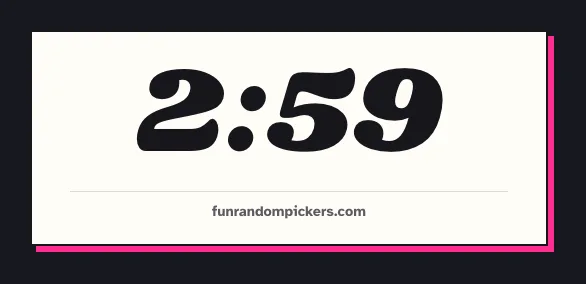
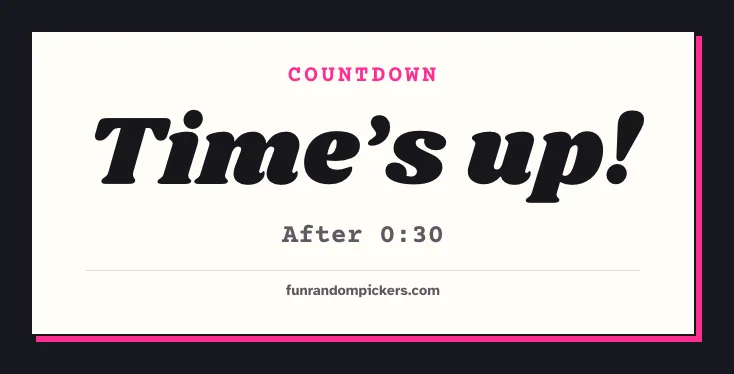
Set how long the countdown runs: a fixed time, a random time picked from a range, or a surprise stop that counts down from the longest time and ends without warning somewhere in the range, so nobody, you included, knows exactly when time is up.
It runs as an OBS overlay. The time shows on a solid plate that reads over any game or camera, and when it ends a Time's up card comes up with confetti and, if you want it, a chime. You start, pause and stop it from a control panel docked in OBS, a hotkey, or a Stream Deck.
It counts down a length of time rather than to a time of day. For a starting soon screen, set a fixed time and start it when you open the scene.
Set Up the Timer
A few minutes, once
- 1
Set the time
Open the countdown and set the min and max duration in hours, minutes and seconds. Set them the same for a fixed time, or turn on surprise stop. Click Use in OBS and copy the link, which carries your settings.
- 2
Add it to OBS
Follow the OBS setup guide (the button at the top of this page) to add the timer as a Browser Source and dock the control panel, then choose Countdown at the top of the panel. In the source's properties, leave Shutdown source when not visible unticked, so the timer keeps running when you switch scenes.
- 3
Run it
Press Start. Pause and resume it from the panel (or P in the source's Interact window), and stop it from the panel, with Esc, or with the frp-stop event from a Stream Deck.
Recommended Tools
The best picker for each situation
Countdown Timer
A timer that reads at a glance over any scene, with a random or surprise ending when a fixed one would be too predictable.
Example
For a hot potato round, set 30 seconds to 2 minutes with surprise stop. It counts down from 2:00 and stops without warning, and the card says when.
Spinning Wheel
Pair the timer with a challenge wheel: spin for the challenge, then start the clock.
Example
Put challenges on the wheel (no jumping, pistol only), spin when chat hits a goal, and give yourself five minutes to pull it off.
Specific Scenarios
Ready-to-use setups for common situations
Timed challenge
Start the timer when chat sets a challenge and stop it from the control panel if you finish early. The card shows how long it ran.
⏱️ Best with Countdown TimerHot potato or bomb timer
Turn on surprise stop so the timer ends without warning somewhere in the range. The tension does the rest.
⏱️ Best with Countdown TimerChat vote window
Run a fixed two minute timer while a poll is open, so everyone can see how long is left to vote.
⏱️ Best with Countdown TimerBreak timer
Show a fixed five or ten minute timer on your break scene so viewers know when you will be back.
⏱️ Best with Countdown TimerChallenge wheel, then the clock
Spin the wheel for a challenge, then switch the control panel to Countdown and start the timer.
🎡 Best with Spinning WheelTips & Best Practices
Get the most out of these tools
Keep the source running
OBS can shut a Browser Source down when its scene is hidden. Leave Shutdown source when not visible unticked in the source's properties, or the timer starts over when you switch back.
Watch the time from the panel
The control panel shows the time left while the countdown runs, so you can keep an eye on it without looking at your preview.
Use surprise stop for tension
A visible timer that might end at any moment changes how people play. It works best with a range of a minute or more.
Turn on the chime
Switch sound on in the control panel and tick Control audio via OBS in the source's properties, and a chime plays when time is up. There is no tick every second on stream.
Fixed, Random or Surprise: Choosing a Timer
A fixed timer is the honest choice when the time matters to the people watching: a break, a vote, a challenge with a clear target. Everyone can plan around it.
A random time from a range adds a little doubt without hiding anything. The timer still counts down to zero in plain view; you just did not choose the starting point.
Surprise stop is for games. The display counts down from the longest time, but the countdown ends at a random moment in the range, drawn with cryptographic randomness when you press Start. The card shows where it stopped, so nobody can say you ended it early on purpose.
Frequently Asked Questions
Everything you need to know
Can the timer count down to a time of day, like 8pm?
No. It counts down a length of time. For a starting soon screen, work out how long until you start, set that as a fixed time, and press Start.
Does the timer keep running when I switch scenes?
Yes, as long as Shutdown source when not visible is unticked in the source's properties, which is how OBS sets it up by default.
Can I pause the countdown?
Yes. Pause and resume it from the control panel, with P in the source's Interact window, or with the frp-pause event from a Stream Deck. A surprise stop keeps its hidden stopping point while paused, so a pause cannot be used to steer where it ends.
How long can the countdown run?
Up to 99 hours, 59 minutes and 59 seconds.
Can I start and stop it from a Stream Deck?
Yes. Send the frp-spin event to start it, frp-pause to pause or resume it, and frp-stop to stop it, with {"mode": "countdown"} in the event data if you have other pickers in OBS.
Ready to try it?
Free, instant, and works on any device. No sign-up needed.